SQL Studio
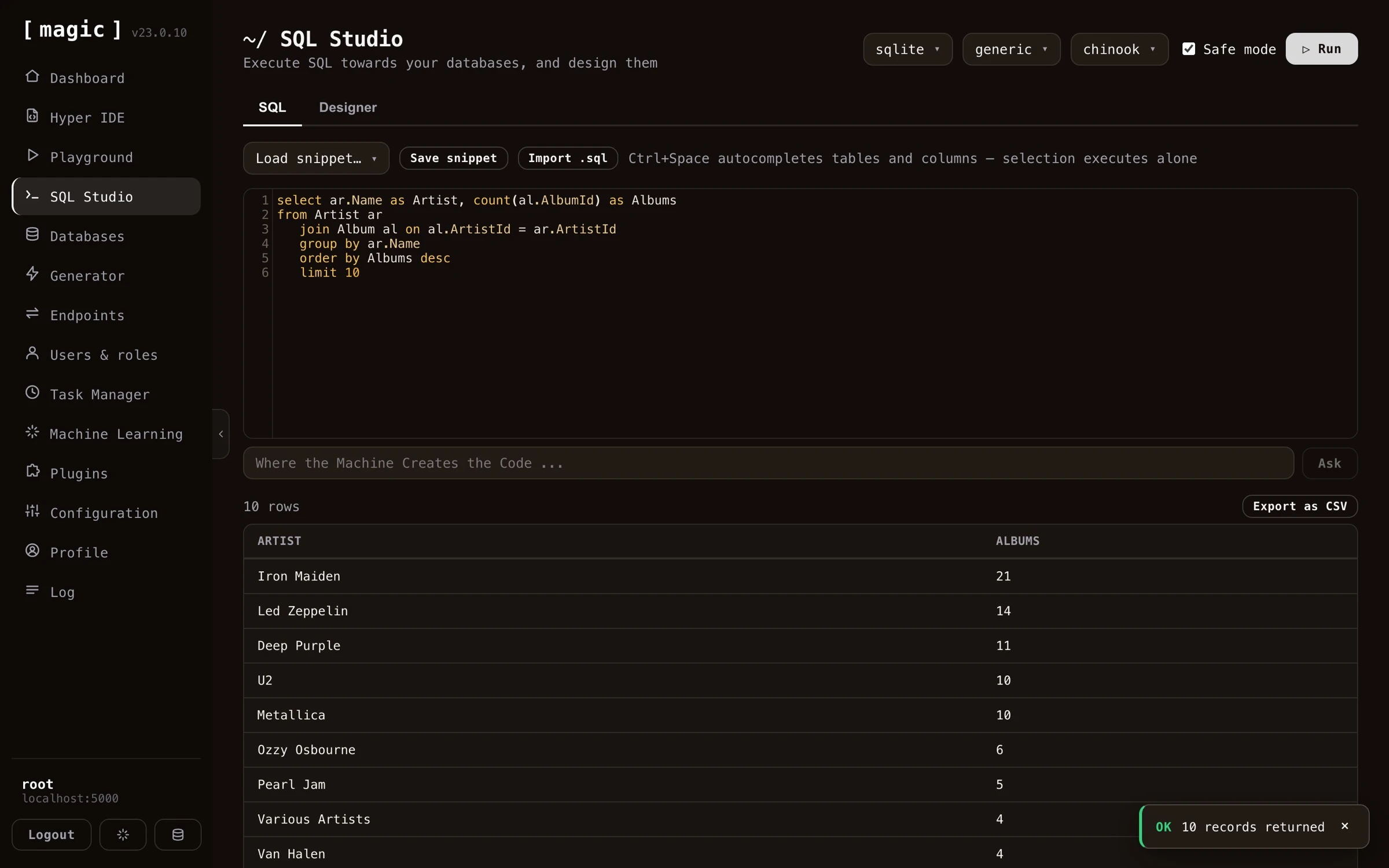
SQL Studio allows you to visually design your database, and also execute any SQL towards your database of choice. SQL Studio also allows you to export the result of some SQL to a CSV file, in addition to saving frequently used SQL statements by using the “Snippets” and “Save” buttons.
If you install one of the SQLite database plugins using the plugins component, you also typically get a lot of example SQL statements - Implying SQL Studio is also a nice place to start out if you want to teach yourself SQL. To access the SQL editor open up SQL Studio and click the “SQL” tab.
Creating SQL with natural language
Below the SQL editor you’ll find an input textbox that says “Where the Machine Creates the Code”. Describe the query you want in plain English - for instance “Select all artists with their album count, ordered by number of albums” - click “Ask”, and the AI writes the SQL for you, aware of the database you’ve currently selected and its schema. If the editor already contains SQL, your prompt becomes a change instruction, so you can iterate on a query the same way. This means you can use SQL Studio productively even before you’ve learned SQL.
Create and design your database visually
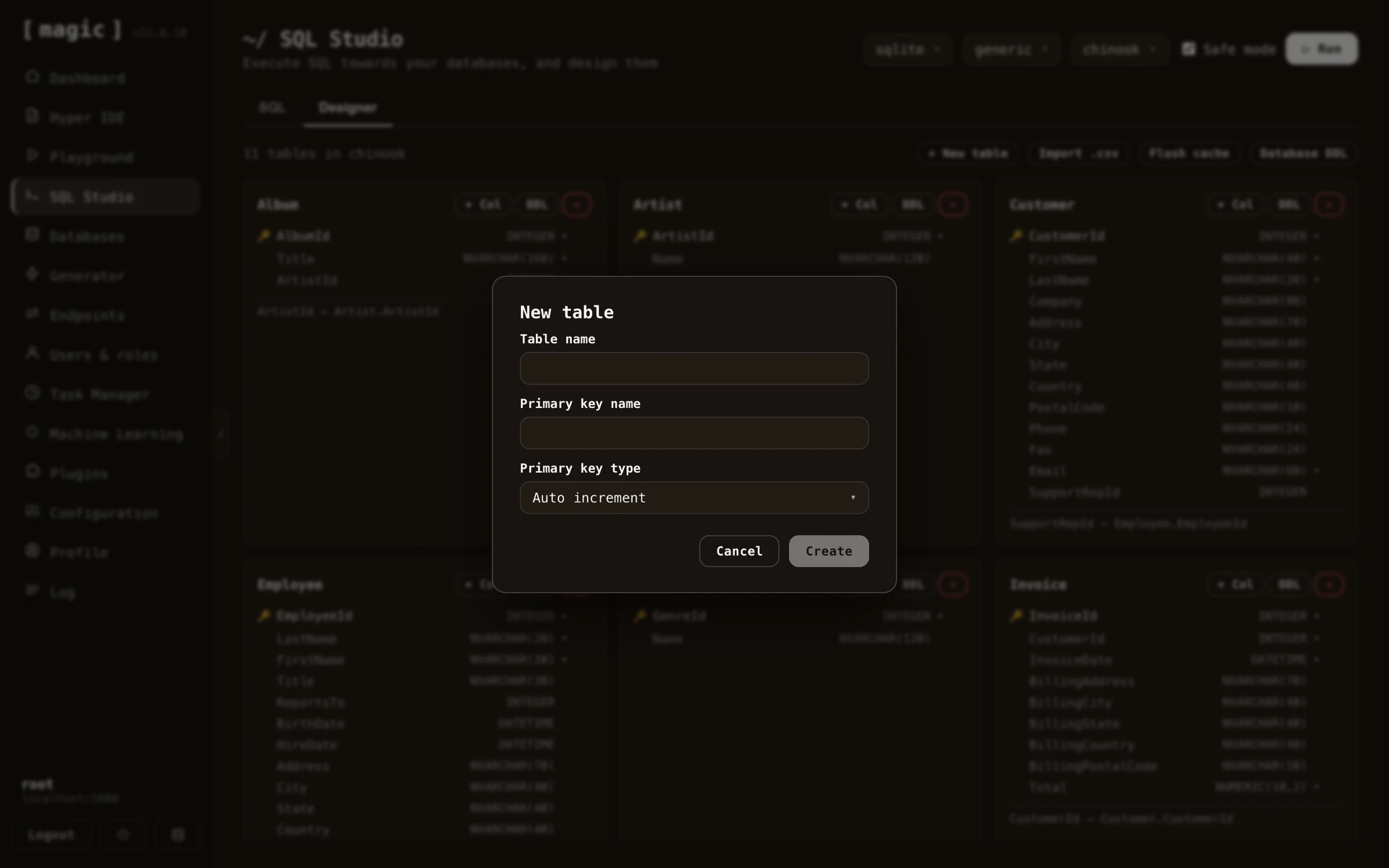
You can also use SQL Studio to visually create and design your database. This is a graphical user interface, where you don’t need to write any SQL DDL to create your database structure. SQL Studio’s database designer allows you to create new tables, add fields to your tables, and create foreign keys referencing other tables as you wish.
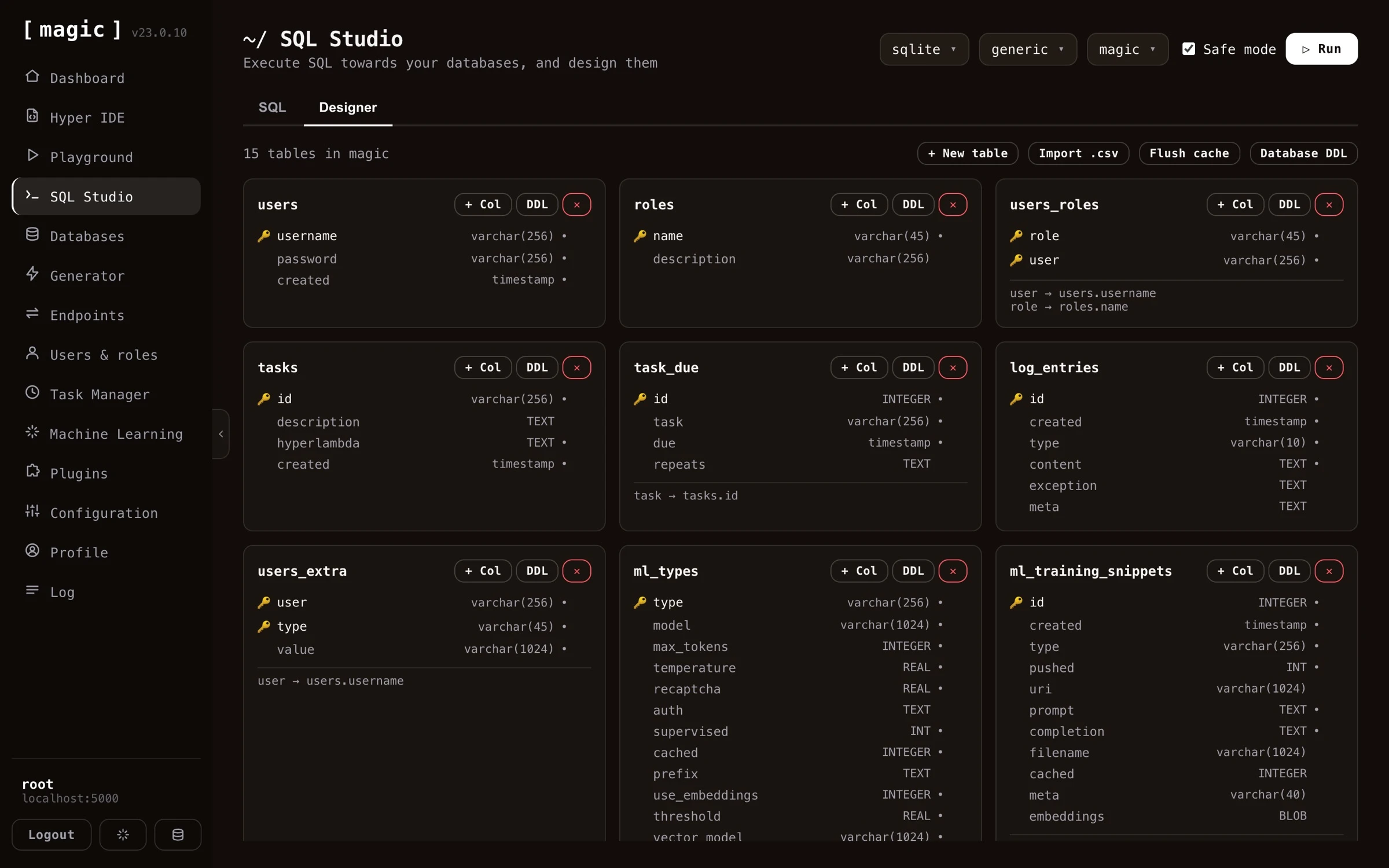
Creating a new table is as simple as clicking the “New table” button, giving your table a name, and declaring its primary key.
Adding a column to an existing table is just as easy - declare its name, type, an optional default value, and whether it’s nullable. The same dialog also has a “Foreign key” tab, allowing you to create columns referencing other tables.
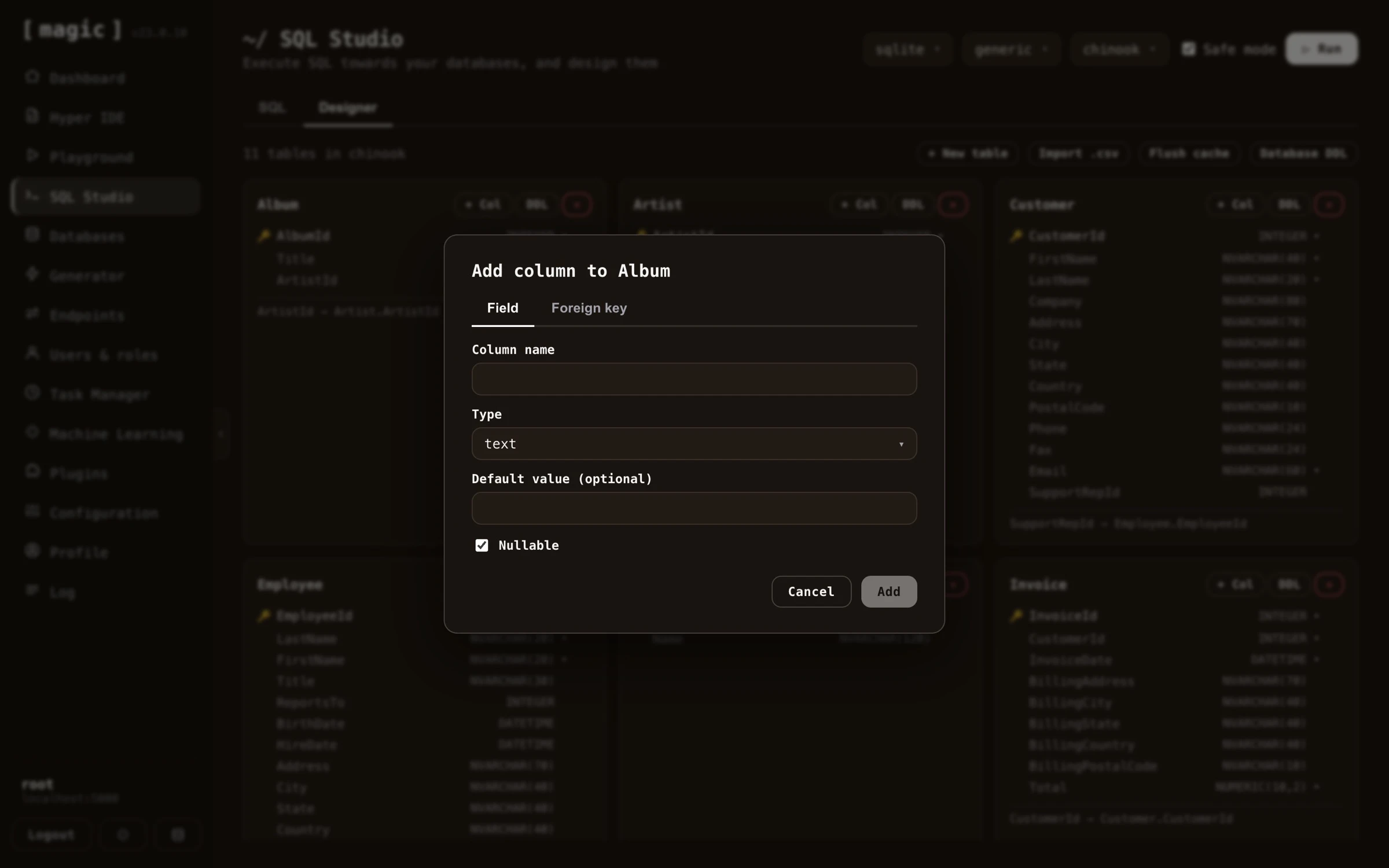
Notice, the designer is optional - you can just as well create your database structure with plain SQL DDL from the SQL view. And you don’t even have to write the DDL yourself; ask the “Where the Machine Creates the Code” bar below the SQL editor for something such as “A CRM system with 3 tables allowing me to manage my contacts”, and the AI generates the complete DDL for you - tables, primary keys, and foreign keys included - ready to execute.
SQL Studio features
The “Safe mode” slider prevents you from selecting more than 200 records from your database in one go. If you need to select more records you must turn this slider off. However, if you return thousands of records with some SQL statement, your cloudlet might become unresponsive, and/or you may end up exhausting your cloudlet’s memory or your client’s memory.
When you execute SQL, you can run your entire statement, or highlight part of it in the code editor and execute only the selected portion. If you have a selection, only the selected SQL is executed - which is handy when your editor contains several statements and you only want to run one of them.
You can save your frequently used SQL statements as “snippets” similarly to how you can save frequently used Hyperlambda in the Hyperlambda Playground component. This allows you to store frequently used SQL snippets for later, creating a library of snippets you can tap into as you need to execute the same SQL again.
SQL Studio also provides you with autocomplete on both your tables and columns. This typically works best if you write SQL statements where your tables are aliased, and you write the alias of your table, followed by a dot (.), for then to trigger autocomplete. To launch autocomplete click FN+CONTROL+SPACE on a Mac, or CTRL+SPACE on Windows.
In addition, you can import SQL statements from your local development machine by clicking the “Import” button, which will bring up a browse for file dialogue, allowing you to import some SQL file from your local machine into the SQL editor surface of SQL Studio.
SQL Studio and Machine Learning
SQL Studio integrates with the machine learning and AI parts of Magic. This allows you to ask SQL related questions, such as; “Create an SQLite DDL for me that creates a users and roles table, where each user is referencing a role with a foreign key”.
The AI features of SQL Studio don’t always produce perfect code, but it is built on top of OpenAI’s APIs, so it should be good enough to give you at least an approximation of what you want to achieve. Notice, you need an API key with OpenAI to have these parts of SQL Studio work.
If you use the AI chat interface in SQL Studio you can ask the AI to create, and/or modify your code, and such have “conversations” with the AI about your code.
SQL Studio designer features
The SQL Studio database designer allows you to do the following things.
- Create new tables
- Create new fields
- Create new foreign keys
- Export one table’s DDL
- Export all tables’ DDL
- Import a CSV file as a new table
- Flush the server-side schema cache
SQL Studio doesn’t give you every single feature of SQL DDL, but it’s good enough to provide you with 90% of what you need as you are designing your database schema. When you create a new foreign key for instance, it will ask you if you want to allow for null values in your foreign keys, and if you want to turn on cascading deletes - But it will not ask you if you want to set to null upon deletions.
Importing a CSV file
The designer can also create a table directly from a CSV file. Click the “Import .csv” button, choose a CSV file from your local machine, and Magic creates a new table named after the file, with one column for each column in your CSV file. It automatically picks a numeric or text type for each column based on its values, adds an automatically incrementing primary key, and then imports every row from your file. The import runs in the background, so you’ll be notified once it completes - just reload the page afterwards to see your new table in the designer.
Flushing the server-side cache
For performance, Magic caches your database schema on the server. If your schema changes outside the designer - for instance when you import a CSV file, or when an AI agent creates a table over the MCP server - click the “Flush cache” button to clear this cached schema. Doing so reloads the page, so the designer reflects the current state of your database.
SQL Studio’s designer works transparently towards all database types, implying you can use it to create databases for MySQL, PostgreSQL, SQLite, MariaDB, and SQL Server. However, what types of fields you can create differs between database types.
How to create a database using SQL Studio
You cannot actually create a database with SQL Studio. This needs to be done using the Databases menu item below the “Create” section. However, once you have created a database, you can use SQL Studio to create tables in it, and modify these as you see fit.
Frequently asked questions
What is SQL Studio?
SQL Studio is a web based SQL workbench that allows you to execute any SQL towards your database of choice, and visually design your databases. It supports SQL Server, PostgreSQL, MySQL, MariaDB, and SQLite.
Can SQL Studio generate SQL from natural language?
Yes. Below the SQL editor you will find an input textbox that says 'Where the Machine Creates the Code'. Describe the query you want in plain English, click Ask, and the AI writes the SQL for you, aware of your selected database and its schema. This also works for DDL, allowing you to generate entire database structures from a description such as 'A CRM system with 3 tables'.
Do I need to write DDL to create tables?
No. The visual designer lets you create tables, add columns, and declare foreign keys through dialogs, without writing any DDL. You can still use plain SQL DDL from the SQL view if you prefer, or have the AI generate the DDL for you.
What is Safe mode?
Safe mode prevents you from selecting more than 200 records in one go, protecting your cloudlet and browser from exhausting memory. Turn it off if you need to select more records.
Can I save frequently used SQL statements?
Yes. Save any statement as a named snippet and load it later from the Load snippet dropdown. You can also import .sql files from your local machine.
Can I export query results?
Yes. Any result set can be exported as a CSV file with one click, letting you bring your data into Excel or any other tool.
Does SQL Studio have autocomplete?
Yes, on both tables and columns. Alias your tables, write the alias followed by a dot, and click CTRL+SPACE on Windows or FN+CONTROL+SPACE on a Mac to trigger autocomplete.
Can I execute only part of my SQL?
Yes. If you select a portion of the SQL in the editor, only the selection is executed - handy when your editor contains several statements and you only want to run one.