Log
The log component allows you to browse your cloudlet’s log. When an important event occurs in Magic, a log entry will typically be created describing the event. Examples of such events are when users are logging in, or errors are occurring in the system for some reason.
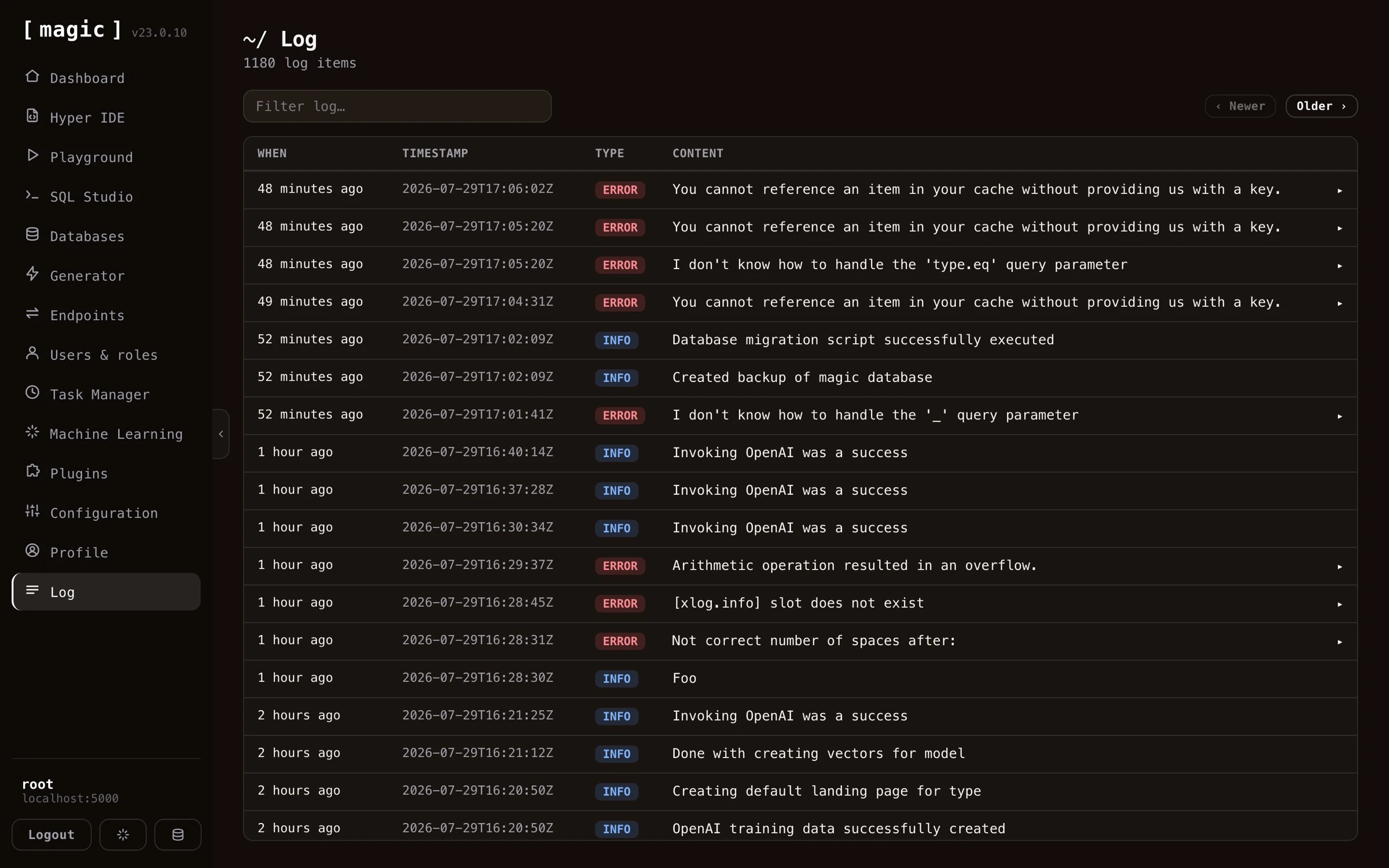
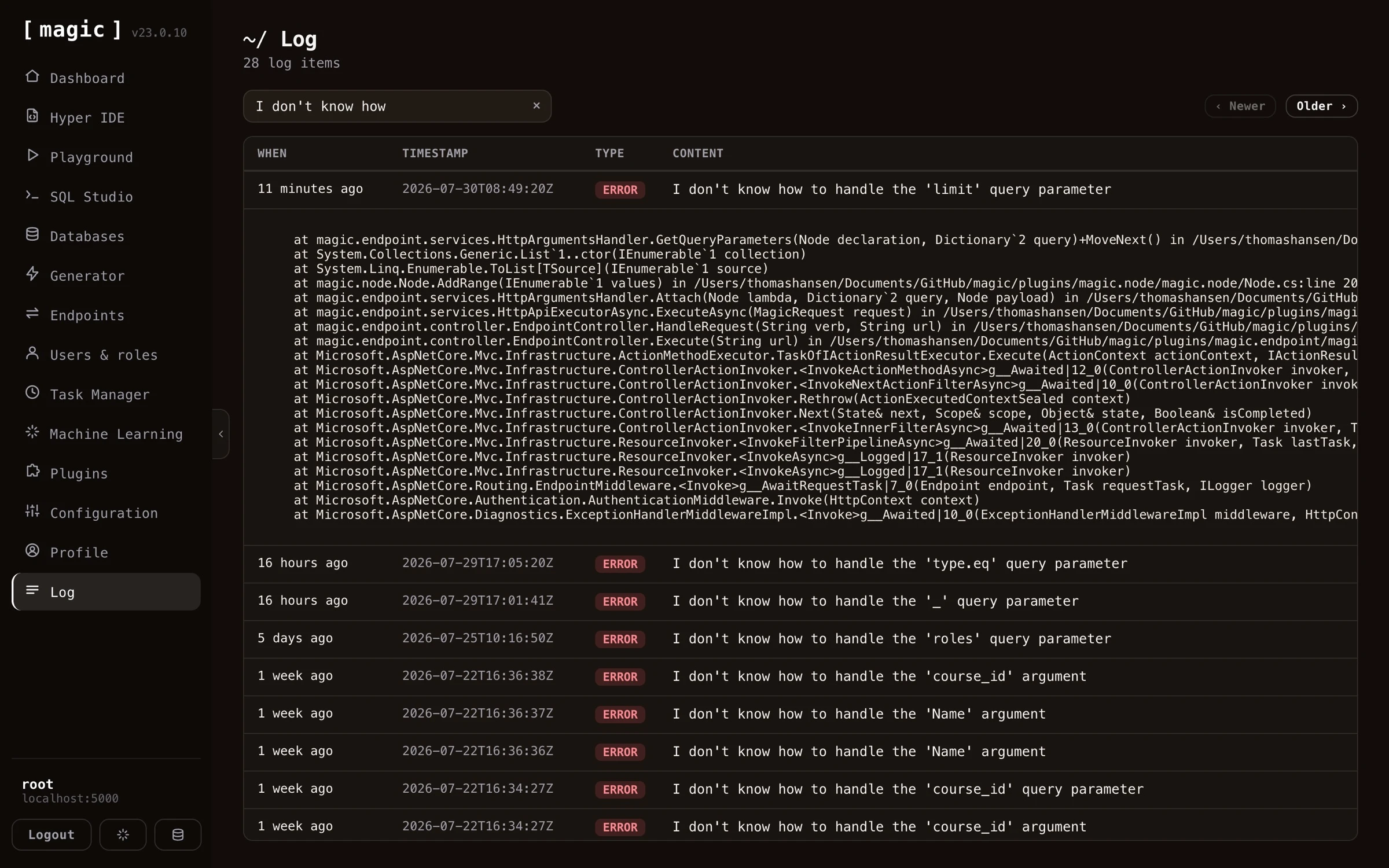
You can also filter your cloudlet’s log, look up specific items, to find bugs happening as your system is being used. Log items carrying an exception can be expanded by clicking them, revealing the complete stack trace of whatever went wrong - which combined with filtering makes tracking down bugs in your system much easier.
 Notice, if you created a cloudlet at AINIRO, by default all log entries older than 2 weeks will be automatically deleted to avoid exhausting your cloudlet’s persistent storage.
From error to log entry in one click
Most of the time you don’t even have to search. When something fails anywhere in the dashboard, the error message contains a “View log entry” link, taking you straight to the log entry the error created - highlighted in the list, and expanded to reveal its stack trace. This works because failed HTTP requests return a log-id field next to their error message, containing the id of the log entry the server wrote for the error - so your own API clients can apply the same trick, correlating any error a user reports with the exact server-side log entry describing what went wrong.
Creating your own log items from Hyperlambda
You can create your own log entries using Hyperlambda code such as the following.
log.info:Something important happened
   what:Something
   importance:High
In the above example we are creating an “info” type of log entry, and the “Something important happened” will become the item’s content, while the [what] and [importance] parts become meta data associated with your log entry. The invocation also returns the id of the log entry it created, allowing your own code to reference the entry later - for instance returning it to a client the way Magic’s own error handling does. If you execute the above Hyperlambda using the “Hyperlambda Playground” component you can see your log entry in your “Log” component at the top afterwards. There are 4 types of log entries you can create by default.
- [log.debug] - These are debug log entries intended for helping you debug your modules and components. These are typically not displayed in a production cloudlet since typically you would turn off debug logging in production
- [log.info] - These are information types of entries providing information about general things occurring in your system
- [log.error] - These are errors and logs when an error occurs in your system and you should pay particular notice to these
- [log.fatal] - These are fatal errors that prevent your system from working correctly, implying they might prevent your cloudlet from working
Configuring logging
Your cloudlet has a “log level” setting that decides how much it should log. This is an incrementally increasing value starting at “debug” and ending at “off”. The latter implying logging is turned off. You can change this “log level” by changing your magic:logging:level configuration setting. The log level declares at what “level” your cloudlet will insert log entries. For instance, typically when debugging you want to set the level at “debug”, while in a production environment you want to increase it to (at least) “info” to avoid flooding your cloudlet with debug log entries. This implies that in your debug environment you will see
all log entries, including your debug log entries - While in production Magic won’t create log entries for debug log items.
Log internals
Log items will be persisted into your magic “log_entries” database table. The magic.lambda.logging project is what encapsulates the logging related slots in Hyperlambda.
Frequently asked questions
What is the Log component?
It lets you browse your cloudlet's log, giving you control over events that might have consequences for your system - errors, security events, task executions, and anything your own code logs.
How do I find the cause of an error?
When something fails in the dashboard, the error message carries a 'View log entry' link taking you straight to the log entry describing the error - highlighted, and expanded to reveal its stack trace. You can also filter the log manually and click any entry carrying an exception to expand it.
Can my own code create log entries?
Yes. Your Hyperlambda code can create log entries as you see fit - including structured meta data - to record important events such as deleting records, executing tasks, or registering users.
How long are log items kept?
On AINIRO hosted cloudlets, log entries older than 2 weeks are automatically deleted by default, to avoid exhausting your cloudlet's persistent storage.