Configuration
The configuration component allows you to view and edit your cloudlet’s configuration settings. Your server’s configuration is basically your “appsettings.json” file, which is being used in all parts of the system to retrieve configuration settings, such as for instance SMTP settings when email slots are sending emails, etc.
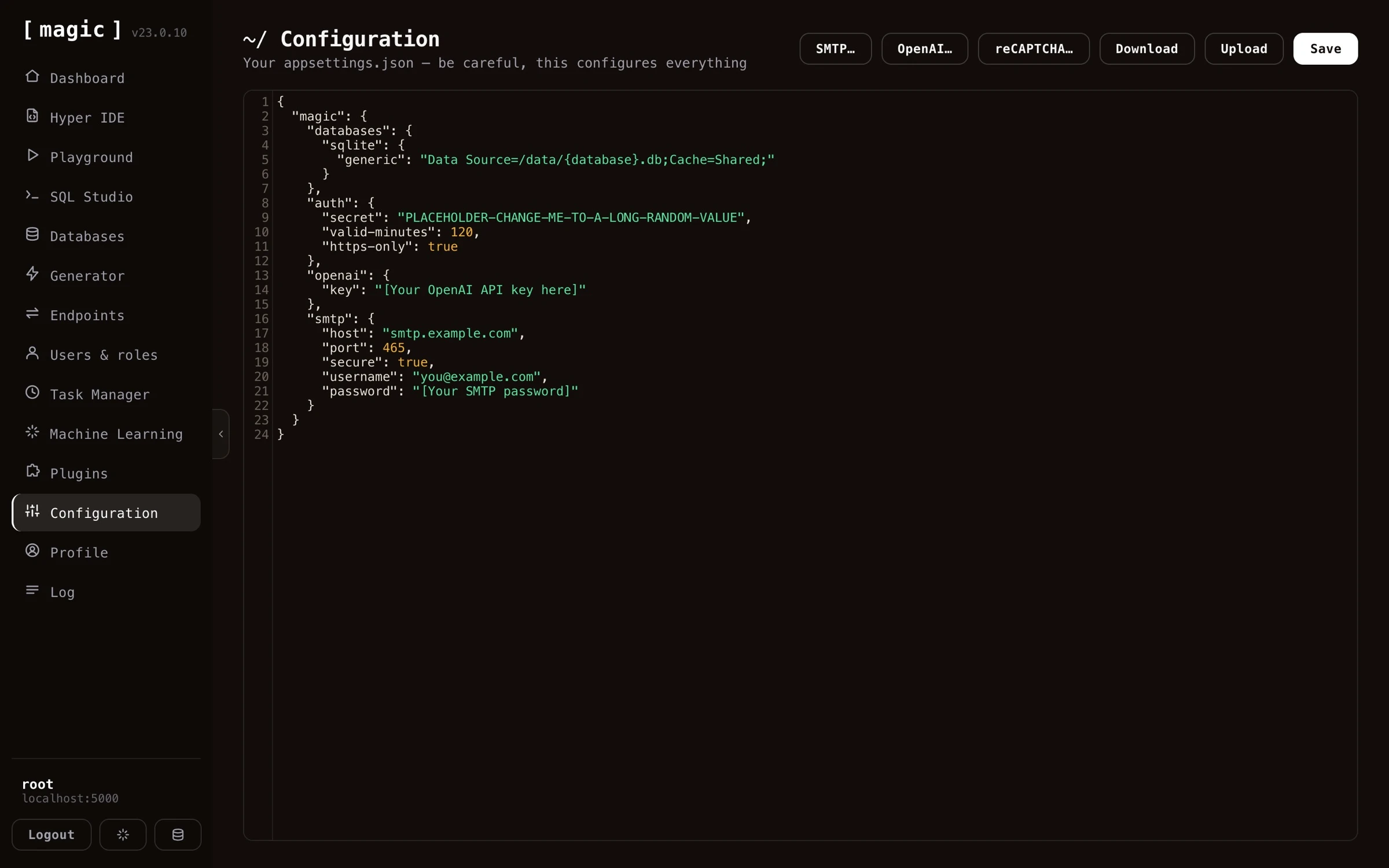
You should be careful as you edit your cloudlet’s configuration settings, since this might result in that your cloudlet becomes erroneously configured, resulting in that your system stops working - In addition to that if you edit your cloudlet’s configuration erroneously, you might open up your cloudlet such that malicious adversaries gain access to your system. The configuration component has helper UI elements to help you configure things such as OpenAI, SMTP and reCAPTCHA, giving you a graphical user interface to edit some of its most important parts.
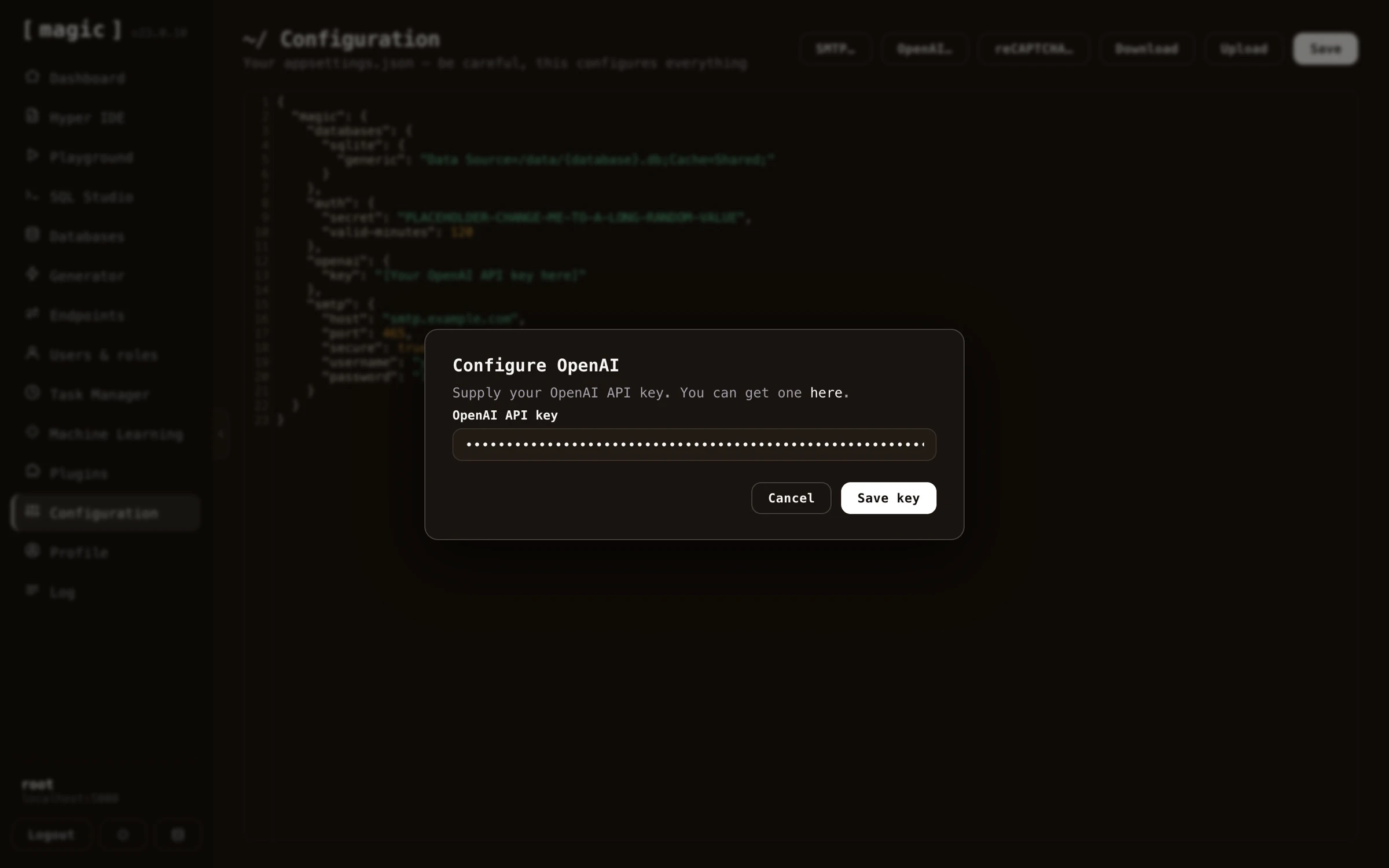
The “OpenAI” button lets you supply your OpenAI API key without touching the JSON.
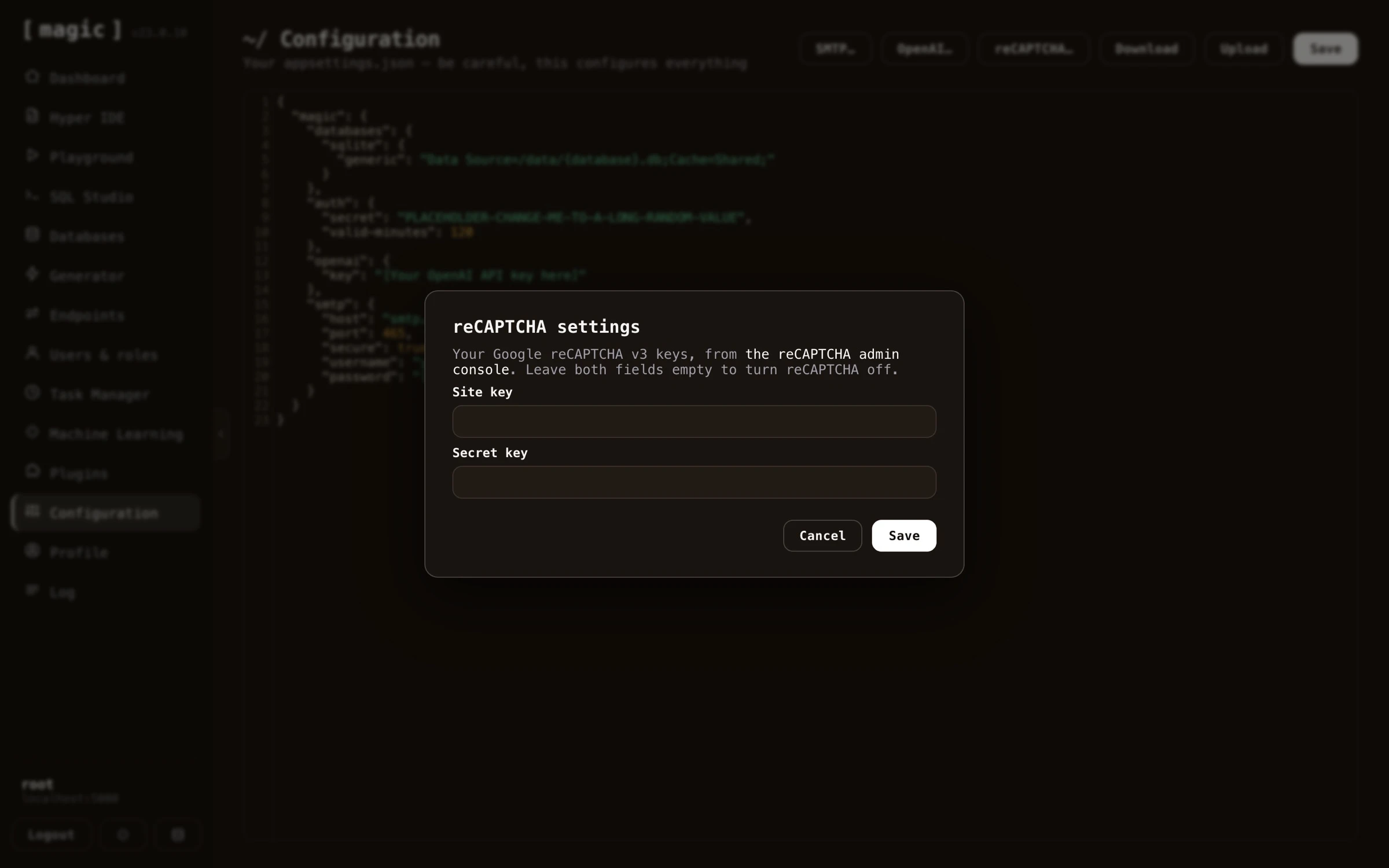
The “reCAPTCHA” button similarly asks you for your reCAPTCHA site key and secret.
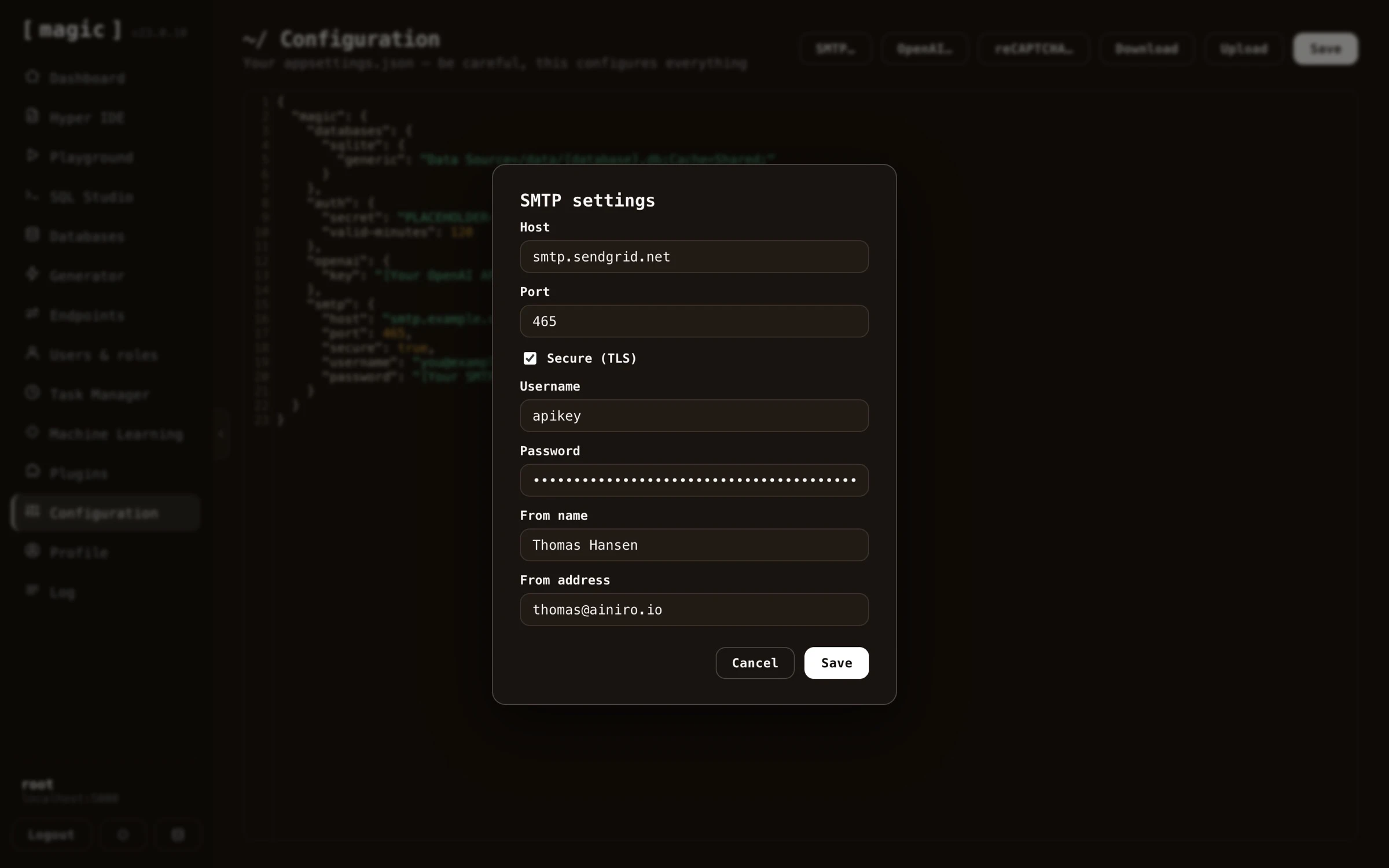
And the “SMTP” button configures your email server; host, port, credentials, and the default from name and address.
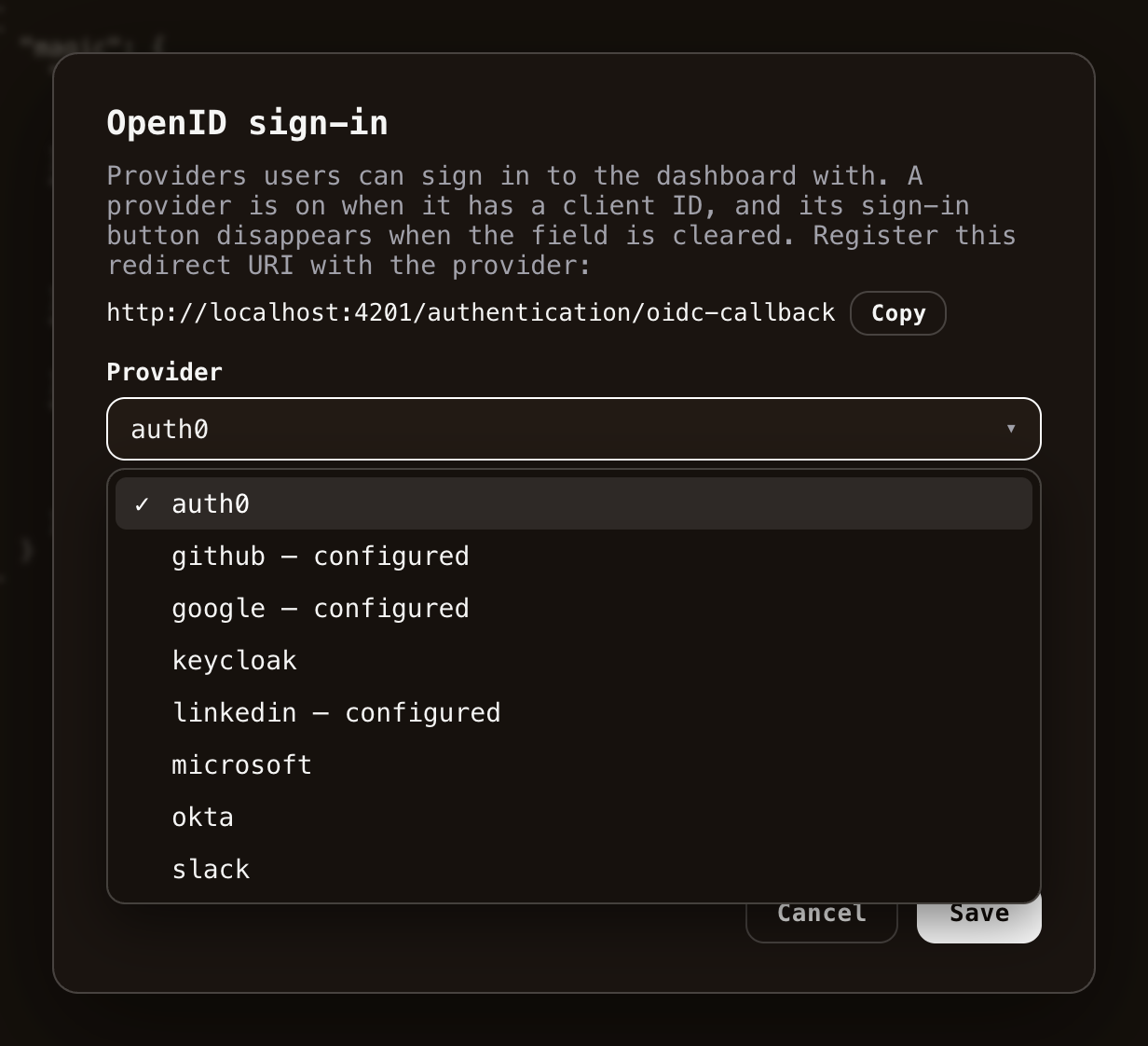
The “OpenID” button configures single sign-on providers for the dashboard’s login screen. The dropdown lists every provider your cloudlet supports - Google, GitHub, LinkedIn, Microsoft Entra ID, Okta, Auth0, Keycloak and Slack - and marks the ones already configured. A provider is turned on by giving it a client ID, and turned off again by clearing the field. The dialog also shows the redirect URI you need to register with the provider, with a copy button. See the SSO sign-in providers tutorial for a walkthrough of each provider.
Notice, if you supply buggy JSON the component will not allow for saving your configuration, but instead provide you with an error message informing you that your JSON has errors. You can also create your own configuration sections as you see fit to use in your own modules.
The component also lets you download a backup of your entire configuration as a file, and restore your configuration from such a backup later - useful before making larger changes, or when moving settings between cloudlets.
Below is a list of the most important sections you can configure in your cloudlet.
CORS
The magic:frontend:urls section allows you to explicitly specify CORS, implying frontend URLs that are allowed to retrieve data from your backend. Its default setting implies all URLs are allowed to retrieve data from your backend, but sometimes you need to explicitly specify one or more URLs here. You can do this by adding a comma separated list of URLs in this setting.
SMTP configuration
The magic:smtp section allows you to specify which SMTP server Magic should use for sending emails. Most parts of this section are self explanatory, but the from section is the default from name and address to use, which is only used if an email is sent without explicitly declaring who it originated from.
Database configuration
The magic:databases section allows you to configure your database connection strings. Magic supports 4 relational database types, these are as follows.
sqlite- SQLitemysql- MySQL + MariaDBpgsql- PostgreSQLmssql- SQL Server
You can use all of the above database types in your cloudlet. However, to access your database you need to provide Magic with one or more connection strings. Each of these sections contains a key/value pair where the key becomes the name of your connection string, and the value its actual
connection string. This section also has a default setting, which is the default database type to use if not specified by caller. This needs to be one of “mysql”, “pgsql”, “sqlite”, or “mssql” - Implying MySQL, PostgreSQL, SQLite or SQL Server.
You would typically never edit the default setting, since Magic only supports SQLite as its primary magic database out of the box.
Authentication and authorisation configuration
This section allows you to override the default authentication and authorisation values for Magic. Its sub-sections imply the following.
secret- JWT secret used to generate a JWT signaturehttps-only- If true this implies JWT tokens will only be verified over an SSL/TLS connectionvalid-minutes- Default number of minutes before JWT token generated by Magic expires. Notice, this can be overridden as your Hyperlambda code is creating a JWT token, but the authenticate endpoint respects this value by default
OIDC sign-in configuration
The magic:oidc section holds one sub-section per sign-in provider, each keyed by the provider’s name. Every provider takes a client-id, and providers speaking the authorization-code flow exchange their codes server-side, so the client-secret never reaches the browser. Beyond that, what each provider needs varies slightly.
google-client-idonlygithub-client-idandclient-secretlinkedin-client-idandclient-secretslack-client-idandclient-secretmicrosoft-client-id,client-secretandtenant, the latter being your directory (tenant) ID - a concrete tenant is required, since the issuer of the tokens Entra creates embeds itokta-client-id,issuerbeing your authorization server’s issuer URL, and optionallyclient-secretauth0-client-id,issuerexactly as Auth0 reports it including its trailing slash, and optionallyclient-secretkeycloak-client-id,issuerbeing your realm’s issuer URL, and optionallyclient-secret
You rarely need to edit this section by hand - the “OpenID” helper dialog described above maintains it for you, showing exactly the fields each provider needs.
Logging configuration
The level parts of this section imply which logging level you want to use. Magic supports 5 legal values for this setting, and these are as follows.
debug- Log everythinginfo- Log only from info level and aboveerror- Log only from error level and abovefatal- Log only fatal errorsoff- Never log
This works similarly to log4net, and implies “minimum logging level”, where any log invocations from and above your minimum level are logged, while the rest of your log invocations will be ignored. The default value of “debug” implies that everything will be logged.
Sockets configuration
The url setting here allows you to override which URL clients need to use to negotiate a socket channel with your cloudlet. You can also completely turn off web sockets entirely here, by changing the value to null or remove the section entirely.
Frequently asked questions
What is the Configuration component?
It lets you view and edit your cloudlet's configuration - the appsettings.json file used throughout the system for settings such as SMTP, OpenAI, database connection strings, and authentication.
Is it dangerous to edit the configuration?
You should be careful, since erroneous configuration can stop your system from working or weaken its security. The component refuses to save invalid JSON, and provides helper dialogs for the most important sections such as OpenAI, SMTP and reCAPTCHA.
How do I restrict which frontends can call my backend?
The magic:frontend:urls section declares CORS, as a comma separated list of URLs allowed to retrieve data from your backend. By default all URLs are allowed.
Where do I configure my database connections?
The magic:databases section holds connection strings for sqlite, mysql, pgsql and mssql, each as name/value pairs, plus a default database type.
What is the auth secret?
The magic:auth section's secret is the key used to sign your JWT tokens - it must be kept secret, and changing it invalidates all previously issued tokens.
How do I let users sign in with Google or GitHub?
Use the OpenID helper dialog to give the provider a client ID (and where required a secret), and register the dialog's redirect URI with the provider. Magic supports Google, GitHub, LinkedIn, Microsoft Entra ID, Okta, Auth0, Keycloak and Slack out of the box.