Machine Learning

Magic’s Machine Learning component allows you to create your own AI based machine learning model, either by crawling your website and scraping it for data, or by manually uploading files, resulting in a private and custom “machine learning model”. Machine learning in Magic is built upon OpenAI’s API and is similar to ChatGPT, and under the hood it’s using RAG and VSS towards your own database to extract context as it’s answering questions using OpenAI.
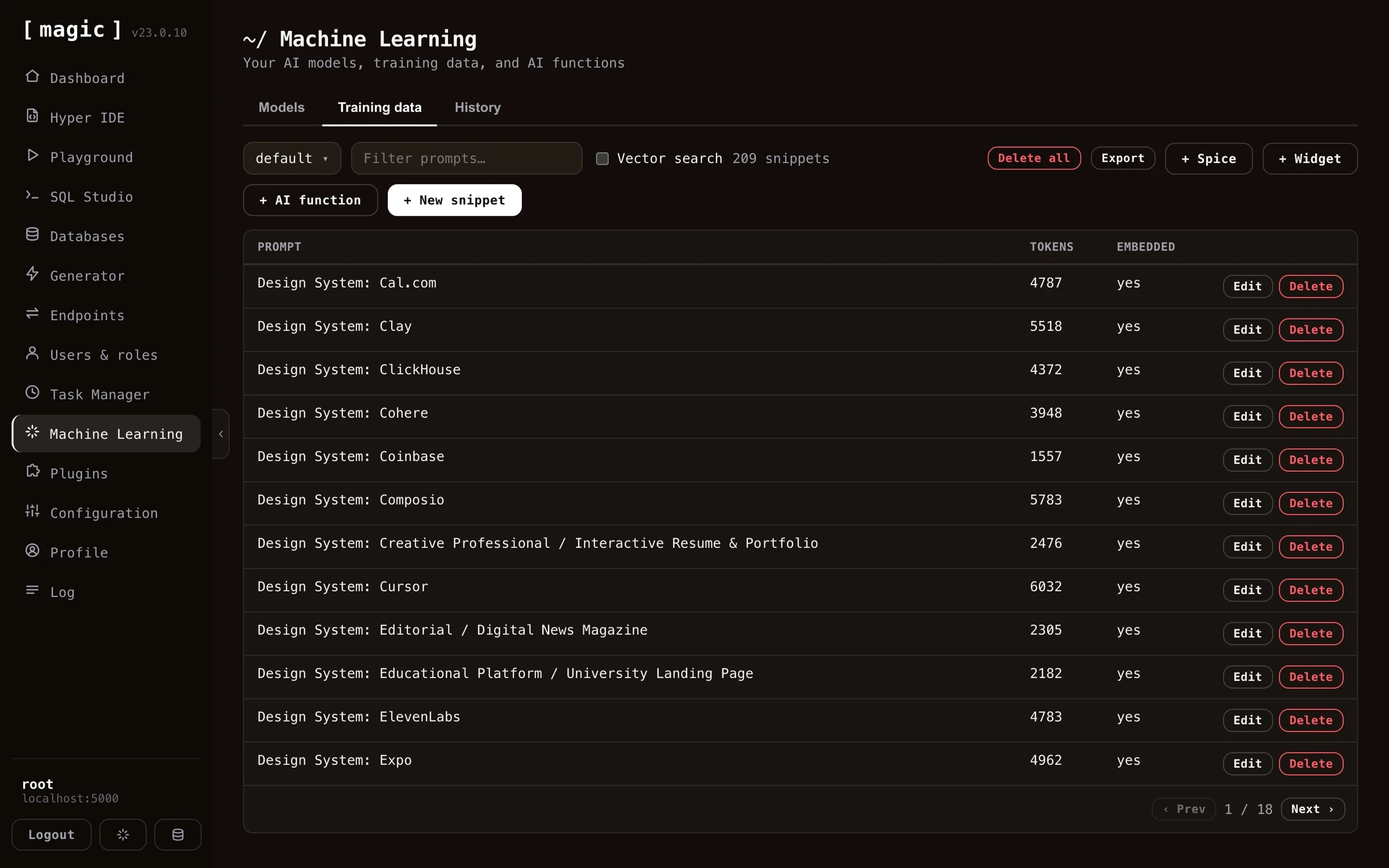
Screenshot of the Machine Learning component showing a model's training data

Magic contains a lot of additional services, such as the ability to monitor or supervise usage, storing questions and answers into your database, and use these to review and improve your model’s accuracy over time. You can also use historical requests for business intelligence, or lead generation. In addition it ties into Magic’s AI Agent abilities, allowing you to integrate AI functions triggering AI workflows from instructions provided by the user.

You can crawl and scrape your website for training data, or upload your own files in a wide variety of formats, such as XML, JSON, YAML, CSV, or PDF. Magic uses RAG/VSS to power your model, which eliminates AI hallucinations, resulting in higher accuracy, and is also significantly less expensive.

Use cases

  • Expert law system, answering legal questions for your clients
  • Medical expert advice system based upon AI and machine learning, giving you help when diagnosing patients and clients
  • Support chatbot for your company, giving your clients support for whatever questions they might have
  • Automated sales expert systems, converting leads on your website into paying clients
  • Cognitive assistants, helping your employees with some specific task at hand
  • AI Agents serving as AI assistants performing tasks for you according to your instructions

The advantage of creating your own Machine Learning model is that you can create a private and custom AI chatbot. This can become a much “sharper” intelligence than the publicly available ChatGPT, with knowledge about your particular problem domain, problems ChatGPT is not able to correctly provide answers to.

To understand what I mean here go to ChatGPT and ask it about your company. Chances are that ChatGPT has no idea how to answer your questions correctly. If you scrape your company’s website, and/or upload your own training data, you could create a “custom version of ChatGPT”, that is able to answer support requests, and/or convince leads and potential clients to become paying customers, etc. This is of course impossible with the general ChatGPT implementation, but can sometimes be created in some few minutes using Magic Cloud.

This is one of the primary services AINIRO.IO is providing, and we have a lot of experience with building high quality AI chatbots. If you want us to create you a chatbot, you can create a demo chatbot on our website, or contact us here.

Crawling your website

To crawl and scrape your website, create a model, then click the “Import” button on your model, and provide it with your website’s URL.

You can upload training data in a wide variety of formats. However, most interestingly for most is that you can simply point Magic at your website, and it will crawl your website, and scrape it for training data that you can later consume using RAG.

The way the crawler works, is by first checking if your website has a sitemap file. If your site has a sitemap, it will retrieve all pages referenced in your sitemap file(s). Once it has retrieved an HTML document, it will scrape each individual page, transform it into Markdown, apply some intelligence related to chopping pages up into multiple training snippets - For then to finally store these as training snippets in your RAG database.

This process resembles the process Google and other search engines are following as they crawl your site, and one of the bonus features of scraping your website, is that you get to some extent see how search engines see your website. Hence, it is also a somewhat valuable tool to SEO quality assure your site. Magic’s crawler explicitly identifies as a crawler, and obeys all the standard crawler rules from your robots.txt file.

Screenshot of crawling and scraping your website for RAG data for your machine learning model

Spicing

The spice feature in Magic allows you to scrape a single URL. This provides you with more control, since you can scrape individual pages, and add individual pages to a model. This might be useful if you’ve got additional information you want to put into the same model, such as Wikipedia pages, individual articles, etc. To spice a model choose the “Training data” tab in Machine Learning, choose your model, and click the “Spice” button.

Screenshot of how to spice your model and import an individual page

Periodically re-crawl site

You can configure Magic such that it periodically re-crawls your site. This is done by providing “Website” value in your model’s configuration. By default Magic contains a scheduled task that is executed once every 24 hours. This task will re-crawl all models you’ve configured with a website property.

Screenshot of how to periodically re-crawl your website by changing its website property

When re-crawling Magic will update any existing pages that were changed, and add new pages it finds. When it is done crawling your site it will automatically vectorize your model.

Models

A “model” is a collection of training snippets. When a chatbot is asked a question, it will use VSS search to find training data that is relevant to your question from one specific “model”. Then it will transmit this training data as “context” to OpenAI, and have OpenAI answer questions using the “context” as its source of information. Notice, models are called “types” in the API and database (ml_types) for historical reasons - not to be confused with the OpenAI model (such as gpt-5.6-luna) doing the actual inference, which every model of yours declares as one of its settings.

You can create many models in Magic, and therefore many chatbots solving different problems.

Screenshot showing a list of multiple machine learning models

The models list also shows how many OpenAI tokens each model’s system instruction consumes. This is the baseline cost every single request to the model starts out with - before the user’s question and the RAG context are added on top - so a bloated system instruction quietly makes every conversation more expensive, and this column lets you spot it at a glance.

Once you’re done with importing training snippets into your model, you’ll have to click “Vectorize” on your model before the data can be used by your chatbot.

Configuring your model

A single machine learning model has dozens of configuration settings, for everything you can imagine. Its settings are organised across the “General”, “Behaviour”, and “Integrations” tabs of the model’s edit dialog.

Screenshot of how to configure your machine learning model

The most important setting is the “System message”, found further down on the “General” tab - just scroll down to find it. This becomes the equivalent of a ChatGPT “instruction”, telling the model how to behave. Clicking “Edit system instruction” opens a large dedicated editor for it.

Screenshot of editing the system instruction in its dedicated editor

Adding AI functions to your system instruction

Inside the system instruction editor you’ll find an “AI function” button, listing every AI function available in your cloudlet, and appending the one you choose directly into your system instruction.

Screenshot of adding an AI function to the system instruction

The difference between this and adding an AI function as a training snippet is important. A function added as a training snippet is a RAG function - it only becomes part of the AI’s context if the user’s question happens to match it through a VSS lookup, implying the AI might miss the function if the question is phrased differently. A function added to the system instruction on the other hand is always transmitted to the AI, making it a permanent part of the agent’s capabilities regardless of what the user asks. Use the system instruction for the handful of functions your agent should always be able to invoke, and training snippets for large function libraries where a semantic match is good enough.

Below is an example system instruction with an AI function declaration, that you can copy and paste as a starting point for your own agent.

# Customer service agent

You are a customer service agent for ACME Inc. Answer politely and
succinctly, and use your functions when they are relevant to the
user's question.

## Count albums

Counts albums in the chinook database, optionally filtered by title.
Invoke this function when the user asks how many albums exist.

```plaintext
___
FUNCTION_INVOCATION[/modules/chinook/Album-count.get.hl]:
{
  "Album.Title.like": "[string]"
}
___
```

Notice, below is an example of the type of instruction the “System message” setting expects.

You are Frank, a sales executive for Acme, Inc. Follow these rules
when replying to my questions:

* You must answer all my questions exclusively based upon the
  information found in the context
* You may suggest relevant products and services you find in
  the context
* You should respond with short answers unless asked to elaborate
* You must respond with Markdown
* You should return relevant images and hyperlinks formatted
  as Markdown
* You may use emojis if it makes sense
* If you cannot find the answer to the question in the context,
  then inform the user that you are only configured to answer
  questions about Acme, Inc. and that the user should provide
  some keywords for you to find relevant information

Magic contains several pre-defined flavors, including dynamically created flavors that will scrape some page to create a highly personalised and custom system message that OpenAI will use as its instruction when it is asked questions. Dynamic flavors contain the text “DYNAMIC” as a part of their name, and when selected, it will ask you for a website URL from where to extract information.

Notice, the system message can contain Hyperlambda mixin logic, similarly to how training snippets can. To understand how this works, read the section about adding Hyperlambda code to your training snippets. The system message can also contain AI function declarations, instructing OpenAI to return JSON for a function invocation given some specific instruction, such as for instance “Search the web for Thomas Hansen Hyperlambda.”

Configuration settings

  • Model name, being the name of your model. This cannot be changed once created.
  • Website, which if supplied, will re-crawl the specified website once every 24 hours.
  • Flavor, being a pre-defined list of templates for system messages. Once you select a flavor, your system message will update accordingly.
  • System message, implying the “instruction” to OpenAI. Allows you to change your chatbot’s behaviour.
  • Conversation starters, implying a pre-defined set of suggested questions to start a conversation with the chatbot.
  • Greeting, being a static initial greeting, such as for instance “Hello there, how can I help you?”
  • Authorisation, implying roles users must belong to in order to query model. Requires the user is authenticated through Magic with a valid JWT token if you turn this on.
  • reCAPTCHA, being reCAPTCHA value for accepting queries. This is a legacy setting and you should set it to 0 since we’ve implemented our own PoW-based CAPTCHA library that’s 0.1% of the size of reCAPTCHA.
  • Supervised, which if turned on, will store all questions/answers allowing you to access these through the history tab.
  • Vectors, implying the chatbot will use the vector database to find context. We do not recommend turning this off.
  • API key, being overridden OpenAI API key for a specific model. By default Magic will read API key from your configuration. You can override this on a per-model level.
  • No requests, being total number of requests the chatbot has answered the current month.
  • Max requests, implying maximum requests the chatbot will answer per month. Useful to cap your chatbot to avoid runaway costs. Logically it’s using no requests to see if it can continue answering requests.
  • Temperature, implying chances the OpenAI model is willing to take. Sometimes referred to as “creativity”.
  • Threshold, implying threshold for training data to kick in. Similarity value allowing you to filter out any training data not matching. This value can be between 0 and 1, where 0 implies “match anything” and 1 implies “only match 100% equal snippets”. A good value here is between 0.2 and 0.6, depending upon how strict you want the chatbot to match towards your training data.
  • Completion/chat model, implying the OpenAI base model to use for queries.
  • Vector model, implying vector model to create embeddings for your training data.
  • Max Context tokens, implying how many tokens from your training data the model will maximumly use when sending your context to OpenAI to answer questions.
  • Max Request tokens, implying the maximum number of tokens the model allows for the user’s questions.
  • Max Response tokens, implying maximum tokens to allow for OpenAI to return as answers to questions.
  • Max Message tokens, which is calculated according to your completion model’s token size, and your request, response and context tokens. If this goes to negative, your settings cannot be saved.
  • Max Function Invocations, which is the maximum number of times the model will invoke OpenAI for a single prompt. To understand this number you’ll have to read our tutorial about how to create AI functions.
  • Max Session Items, which is the maximum number of historical requests and answers the model will keep in its session when invoking OpenAI before it starts pruning older messages.

Training snippets

Magic uses RAG for your machine learning model, which we recommend for 99% of our clients. RAG is much less expensive, and most of the time also much more accurate. RAG works by using OpenAI’s embeddings API to create embeddings for your training snippets, for then to create embeddings for questions asked towards your model.

This allows us to use “AI search” to find training snippets relevant to the question asked, for then to pass this as “context data” to OpenAI to answer questions.

It could be argued that we don’t ask OpenAI to answer questions, since we already know the answer - Instead we’re using OpenAI to reassemble the answer into a sentence that makes sense according to what questions the model is being asked. This has huge benefits, such as for instance almost completely eliminating AI hallucinations, and allowing ChatGPT to answer questions it’s got no idea about how to answer without having to train your own model.

One training snippet is one such atomic piece of information. Typically as we transmit “context” to OpenAI, we will transmit multiple training snippets, and choose the most relevant training snippets as we create this context. This allows Magic to “freely associate”, and choose training data from multiple different sources as it is creating your context. A single answer might in theory use data from two PDF files, 5 CSV files, and 3 web pages.

Managing your training snippets

Training snippets can be automatically created as we scrape your website, upload files, or even manually created. In addition, Magic has plugins allowing to connect to a Shopify account through its API, or a WordPress account, etc to import training data. When we setup a chatbot a lot of the work is actually related to “washing your training data” to further increase the quality of the chatbot. By connecting the chatbot to semantic data using an API instead of scraping, the quality of the data typically increases 10x. However, sometimes you will have to manually edit your training snippets. The process of how to do this is shown below.

Screenshot of editing one training snippet

Notice, you don’t have to wash your training data by hand. The snippet editor has its own “Where the Machine Creates the Code” bar, allowing you to clean, edit, or compress individual snippets after importing - provide an instruction such as “Remove the navigation links and compress this to its essence”, and the AI transforms the snippet for you, writing the result straight back into the editor.

The training data tab also lets you work with snippets in bulk. “Export” downloads your snippets as a CSV file - optionally only those matching your current filter - and “Delete filtered” deletes every snippet matching your filter in one go, useful for removing an entire bad import. And once your model is ready, the “Embed” button on the Models tab gives you the script tag for including your chatbot on your website, with themes, colours, position and behaviour you can configure.

Widgets

The “Widget” button on the training data tab allows you to add “widgets” to your model. A widget is a micro app rendered inside the chat stream itself - such as a form, a booking calendar, or a calculator - implemented as a training snippet that instructs the model to render the widget when relevant. After adding a widget, edit its prompt to describe when the chatbot should show it, and the AI displays the widget in the middle of the conversation when a user’s question matches.

Below is an example of a working widget. The user asks the chatbot to get in touch, and the AI renders a contact form in the middle of the conversation - allowing the user to submit his or her name and email address to be contacted by AINIRO, without ever leaving the chat.

Screenshot of a working widget rendering a contact form inside the chat stream

Adding Hyperlambda code to training snippets

A single training snippet can also contain Hyperlambda. If this training snippet scores as the first for some query, only this training snippet will be used, and the Hyperlambda code will be executed before the snippet is sent to OpenAI to answer the user’s question. Below is an example of such a training snippet.

How many questions have you answered lately?

The last 14 days I have answered { {
data.connect:[generic|magic]
   data.scalar:select count(*) from ml_requests
   return:x:-
} } questions from happy users.

Notice, the { and } characters have spaces between them. Remove these in your own Hyperlambda snippets to ensure the Hyperlambda is executed. If the user asks the questions; “How many questions have you answered”, the model will match the above training snippet, and the Hyperlambda will be executed. After executing the Hyperlambda, the context will end up resembling the following.

The last 14 days I have answered 123 questions from happy users.

This will then be transmitted to OpenAI as context data, allowing it to use this to answer your question. This allows your chatbot to work with real time data, and connect itself to any additional data source, to dynamically create context data it sends to OpenAI.

History tab

Once you’ve created a machine learning model in Magic, you can turn on “supervised”. This implies that Magic will store each question and answers it’s given. This data allows you to review and improve how your model performs over time.

The “supervised” feature also allows you to “monitor” your machine learning model, to verify it is functioning optimally, allowing you to correct it where it fails and provide the correct answer - For then to use it as RAG by creating new training snippets based upon existing questions/answers.

You can easily turn on and off machine learning supervision by editing the configuration for your model.

Screenshot of the History tab showing previous questions and answers

AI Functions

This is a subject on its own, but basically a machine learning model has the ability to execute AI functions. This works by instructing OpenAI to respond with the path to a Hyperlambda file and some JSON arguments given some specific condition(s). To understand AI functions, you can read the following tutorial.

But basically an AI function training snippet resembles the following.

This workflow will send an email,
with the specified [reply-to], [reply-to-email], [subject] and [body].
All arguments are mandatory, and [body] can be Markdown, at which point it
will be transformed into HTML before transmitted.

If the user asks you to perform an action associated with this function
invocation, then inform the user of what you are about to do, and do not
return follow up questions, but instead end your response with the
following:

___
FUNCTION_INVOCATION[/system/misc/workflows/send-email.hl]:
{
  "name": "[VALUE]",
  "email": "[VALUE]",
  "reply-to": "[VALUE]",
  "reply-to-email": "[VALUE]",
  "subject": "[VALUE]",
  "body": "[VALUE]"
}
___

Description of arguments:

* name Type of argument is string.
* email Type of argument is string.
* reply-to Type of argument is string.
* reply-to-email Type of argument is string.
* subject Type of argument is string.
* body Type of argument is string.

The above tells OpenAI to return JSON and FUNCTION_INVOCATION if the user asks it to send an email. This results in a “function invocation” in the cloudlet, which is executed, for then to send the result of the invocation back to OpenAI again to answer the original question.

Magic Cloud contains dozens of pre-defined functions, and most of these are easily implemented using no-code constructs. To integrate one of the pre-defined AI functions into your model, you need to choose your model in the “Training data” tab, click the “Add function” button, at which point you’ll see all the pre-defined no-code AI functions existing in the system.

Screenshot of installing an AI function

A Machine Learning platform

Magic’s machine learning component is actually horizontally implemented into almost every single component in Magic. Need to use AI from SQL Studio, no problem, it’s an integrated feature. The same is true for Hyper IDE, and even help is implemented using OpenAI and ChatGPT. If you need help with some Hyperlambda code, just mark it in Hyper IDE and click F1, which will use AI to explain what the code does.
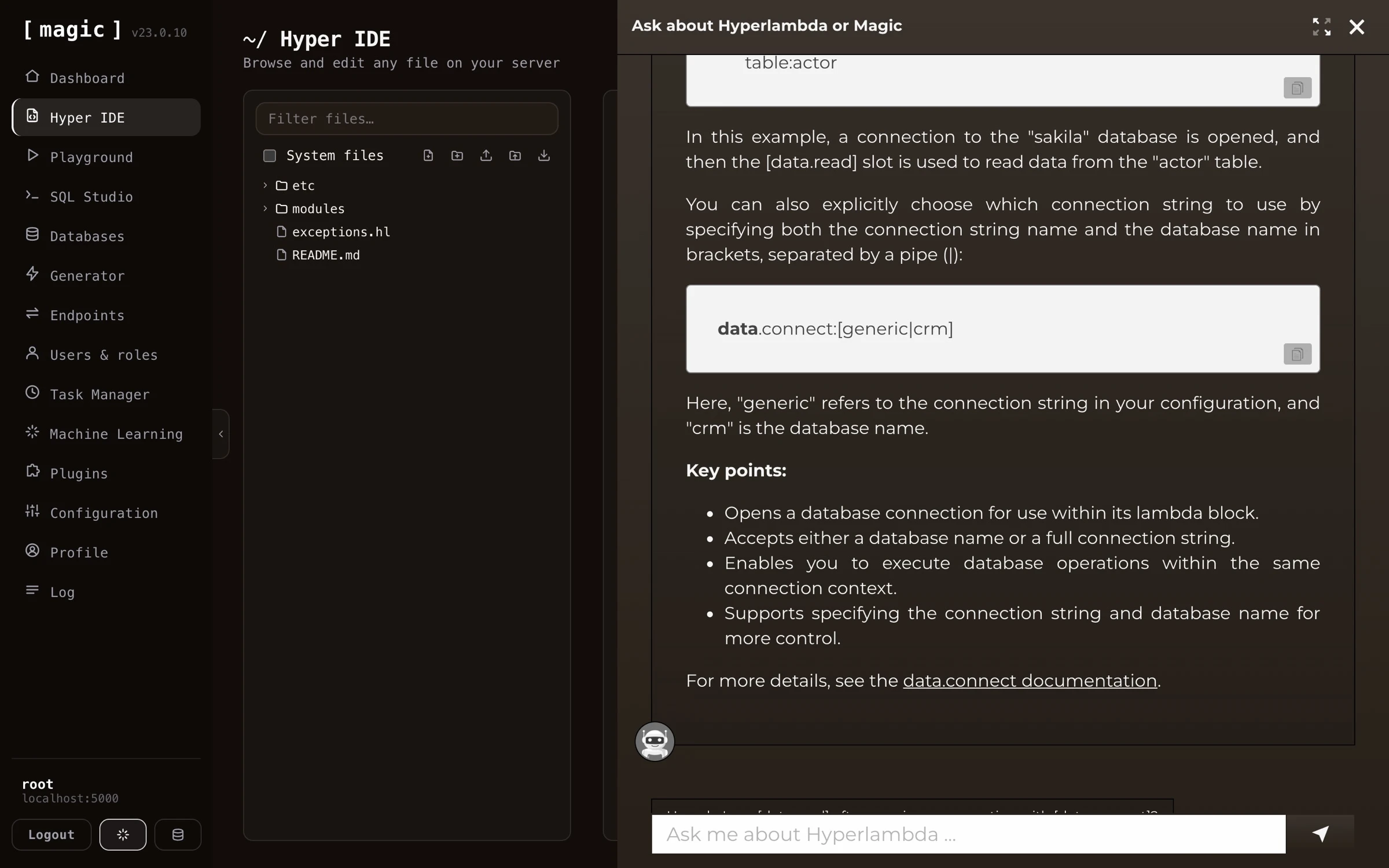
Screenshot of clicking F1 and have OpenAI explain some Hyperlambda code

You can also use OpenAI to generate code for you. Both Hyper IDE and SQL Studio have a little textbox at the bottom that says “Where the machine creates the code.” If you add some piece of instruction here, Magic will invoke OpenAI with your prompt and generate code according to your instructions.

Magic’s integrated support chatbot

In addition, Magic integrates a support chatbot directly into its dashboard. This provides you with integrated help directly from the dashboard. Click the AI chatbot button at the bottom of the navigation sidebar to access this chatbot.
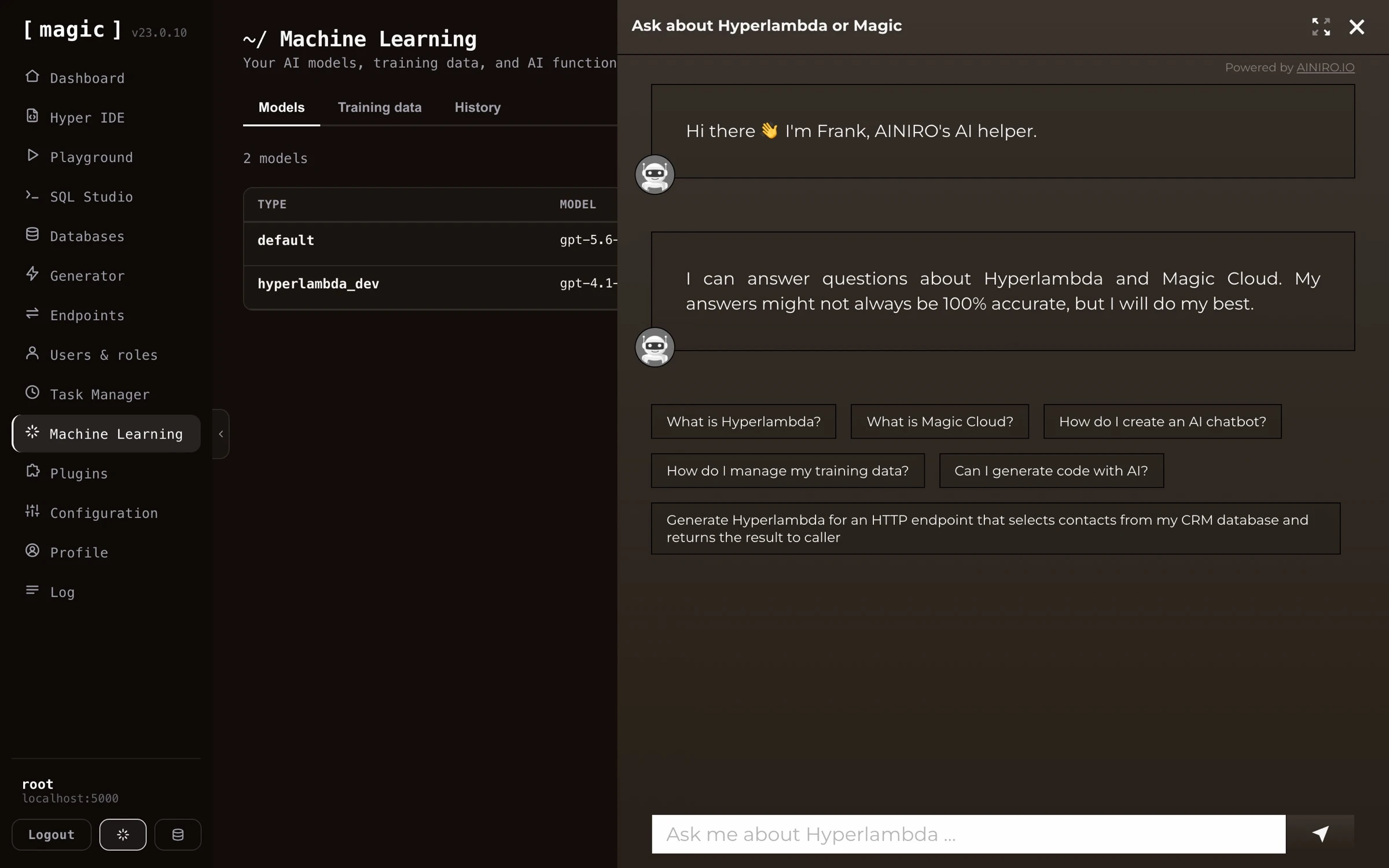
Screenshot of Magic's integrated support chatbot

Frequently asked questions

What is the Machine Learning component in Magic?

It allows you to create your own private AI models by crawling websites or uploading files, turning the content into RAG training data. Under the hood it uses OpenAI, combined with RAG and VSS towards your own database, giving you accurate, domain specific answers without your data ever leaving your cloudlet's database.

Can I import files to my model?

Yes. Click Import on your model and either crawl a website, or upload files in a wide variety of formats - XML, JSON, YAML, CSV, PDF and more. Each file is turned into training snippets automatically.

How do I create an AI chatbot from my website?

Create a model, click Import, provide your website's URL, and Magic crawls and scrapes the site, turning every page into training data. For an even faster start, the Chatbot Wizard on the dashboard's landing page does all of this with one click.

What is a training snippet?

One atomic piece of information, consisting of a prompt and a completion. When answering a question, Magic picks the most relevant snippets - potentially from many different sources - and transmits them as context to OpenAI, which answers using only that context.

What does Vectorize do, and why do I need it?

Vectorising creates embeddings for your training snippets, enabling VSS (Vector Similarity Search) to find the most relevant snippets for each question. You must click Vectorize on your model after importing training data, before the model can be used.

Does my chatbot hallucinate?

RAG and VSS drastically reduce hallucinations, since the model answers exclusively from your own training data instead of inventing facts. This also makes it significantly less expensive than fine-tuning.

Can I edit or clean training snippets after importing?

Yes. Every snippet can be edited manually, and the snippet editor has its own AI bar allowing you to clean, reformat, or compress individual snippets with a plain English instruction - the AI transforms the snippet and writes the result back for you.

Can I search through my training data?

Yes, both with plain text filtering and with Vector search, which finds snippets by meaning rather than keywords - useful for verifying what context your model would use for a particular question.

What are widgets?

Micro apps rendered inside the chat stream itself - forms, calculators, booking widgets, and similar. You add them from the training data tab, and the chatbot displays them in the middle of the conversation when a user's question matches the widget's prompt.

What are AI functions?

Installable functions that turn your model into an AI agent - allowing the chatbot to query your database, trigger workflows, or create training snippets, according to instructions provided by the user in natural language.

How do I embed my chatbot on my website?

Click Embed on your model, configure theme, colours, position and behaviour, and copy the generated script tag into your website's HTML. The chatbot then runs on your site, answering from your training data.

Can I monitor what users ask my chatbot?

Yes. The History tab stores questions and answers, letting you review and improve your model over time - and use historical requests for business intelligence or lead generation. Supervised models can also be corrected by editing bad answers into new training data.